V-Ray Light Lister
This page contains information on the V-Ray Light Lister window.
Overview
The V-Ray Light Lister window is a handy way to modify many common attributes of all of the lights in the scene, both V-Ray lights and standard 3ds Max lights.
UI Path
||V-Ray Toolbar|| > V-Ray Light Lister icon

||Tools menu||> V-Ray Light Lister
Configuration

General Settings – Displays more parameters to control standard 3ds Max Lights.
All Lights – Displays options for all lights in the scene.
Selected Lights – Displays parameters only for selected lights.
Selection Set – Displays parameters only for the lights in the selection set enabled in the dropdown menu.
Refresh – Updates the Light Lister's information. Use this option if you have added lights or made changes to lights outside the Light Lister.
General Settings

General Settings controls common parameters specific to global lighting and standard 3ds Max lights.
Light Settings
The Lights Section controls common parameters for all lights in the scene.
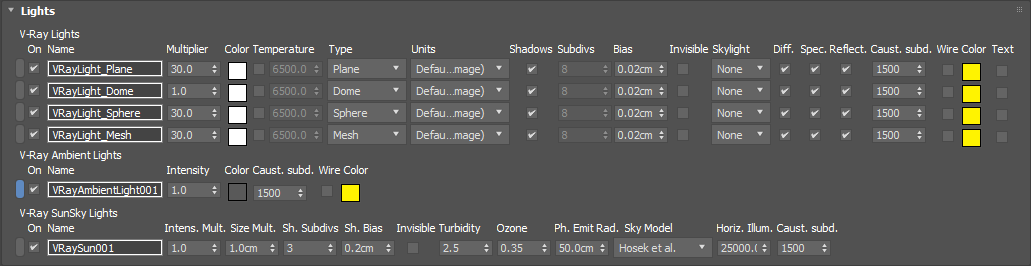
Light Selection Box – Click to select the light in the viewport.
Example: Light Instances
In the Light Lister, instanced lights appear as a single entry with a dropdown. Editing any parameters for the entry will affect all instances.
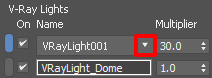
Changing the Intensity of all instances
The dropdown can be used to select a specific instance in the viewport.
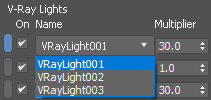
Selecting an instanced light
Notes
-
For more information on the parameters displayed for V-Ray lights in the Light Lister, see the specific page for the light type: VRayLight, VRayIES , VRayAmbientLight, or VRaySun.